

Want to showcase your merch directly on your Shopify™ site? The Dashery Store Widget makes it easy to embed a sleek, scrollable merch shelf on any Shopify page. With just a few quick steps, your visitors can browse your top Dashery products without leaving your site—until they’re ready to purchase.
Disclaimer: Dashery is not affiliated with, endorsed by, or sponsored by Shopify. Any references to Shopify are for informational purposes only.
What is the Dashery Store Widget?
The Store Widget is a compact, visually engaging embed that displays the first 8 products from your Dashery store. It's easy to add, auto-updates when you upload new designs to Dashery or change your merch order, and provides a slick browsing experience for your visitors. When someone clicks on a product, they’re taken directly to your Dashery store in a new tab.
Follow These Steps to Add the Widget:
1. Visit Your Dashery Store Admin Page
Head to https://admin.dashery.com and log into your account.
2. Copy Your Embed Code
In the left menu, click “Integrations”, then select the “Store Widget” tab.
Scroll to the “Copy your Code” section and click the “Copy Code” button to copy your personalized embed code.
3. Go to Your Shopify Page Editor
In your Shopify admin, navigate to the page where you want the Dashery Store Widget to appear. This could be your homepage, an “About” page, or a dedicated “Merch” page.
4. Show the HTML Editor
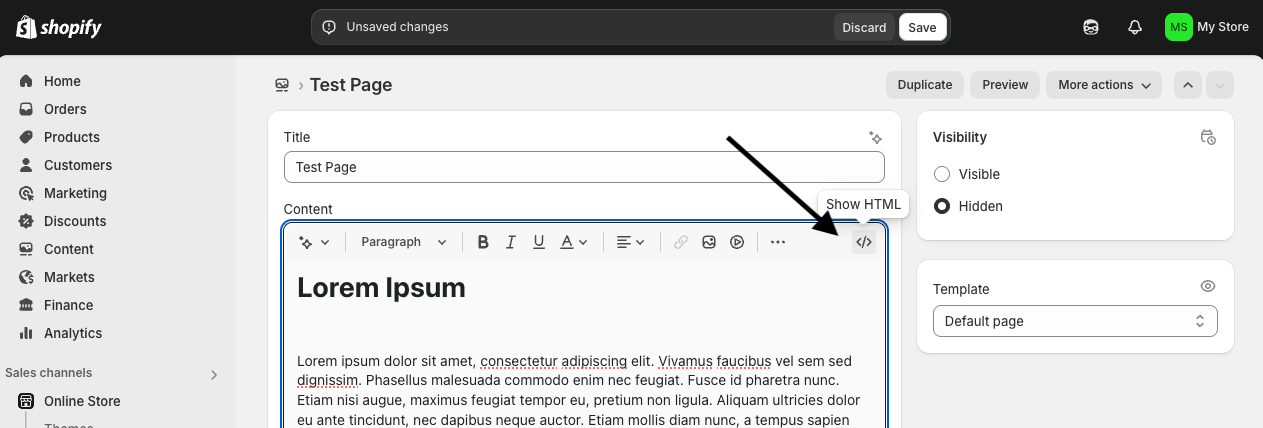
Inside the “Content” section of the Shopify page editor, click the “Show HTML” button in the toolbar. This will reveal the underlying HTML of the page.
5. Paste the Dashery Widget Embed Code
Paste the code you copied from your Dashery admin into the HTML editor where you'd like the merch shelf to appear. You can place it at the top, bottom, or wherever it fits your design best.
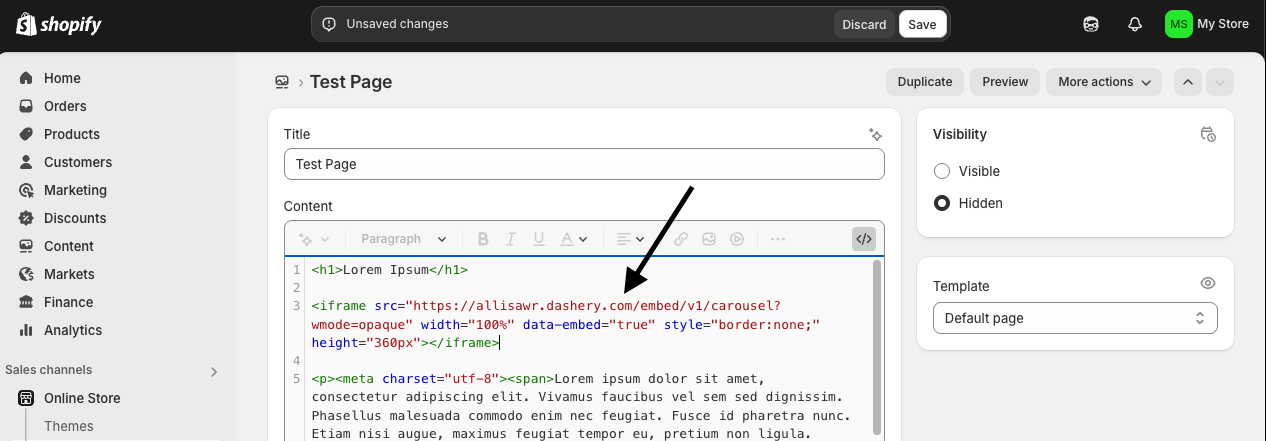
Example code shown. Your code will be different and unique to your Dashery store.
🎉 That’s it!
You’ve successfully added the Dashery Store Widget to your Shopify store page. Your top 8 products will now appear, automatically updating as you make changes in your Dashery dashboard.
Want to tweak the design? Head back to the Store Widget tab in your Dashery settings to adjust colors and match your site’s look and feel.
