

Want to sell merch on your Wix™ site? It’s easy with the Dashery Store Widget! Follow this simple guide to embed a merch shelf and showcase your Dashery products directly on your Wix pages.
Disclaimer: Dashery is not affiliated with, endorsed by, or sponsored by Wix. Any references to Wix are for informational purposes only.
What is the Dashery Store Widget?
The Store Widget is a compact, visually engaging embed that displays the first 8 products from your Dashery store. It's easy to add, auto-updates when you upload new designs to Dashery or change your merch order, and provides a slick browsing experience for your visitors. When someone clicks on a product, they’re taken directly to your Dashery store in a new tab.
Follow These Steps to Add the Widget:
1. Visit Your Dashery Store Admin Page
Log in at https://admin.dashery.com.
2. Copy Your Embed Code
Under the “Integrations” menu, open the “Store Widget” tab.
Scroll down to “Copy your Code” and click the “Copy Code” button.
3. Open the Wix Page Editor
Navigate to the Wix page where you want the merch shelf to appear.
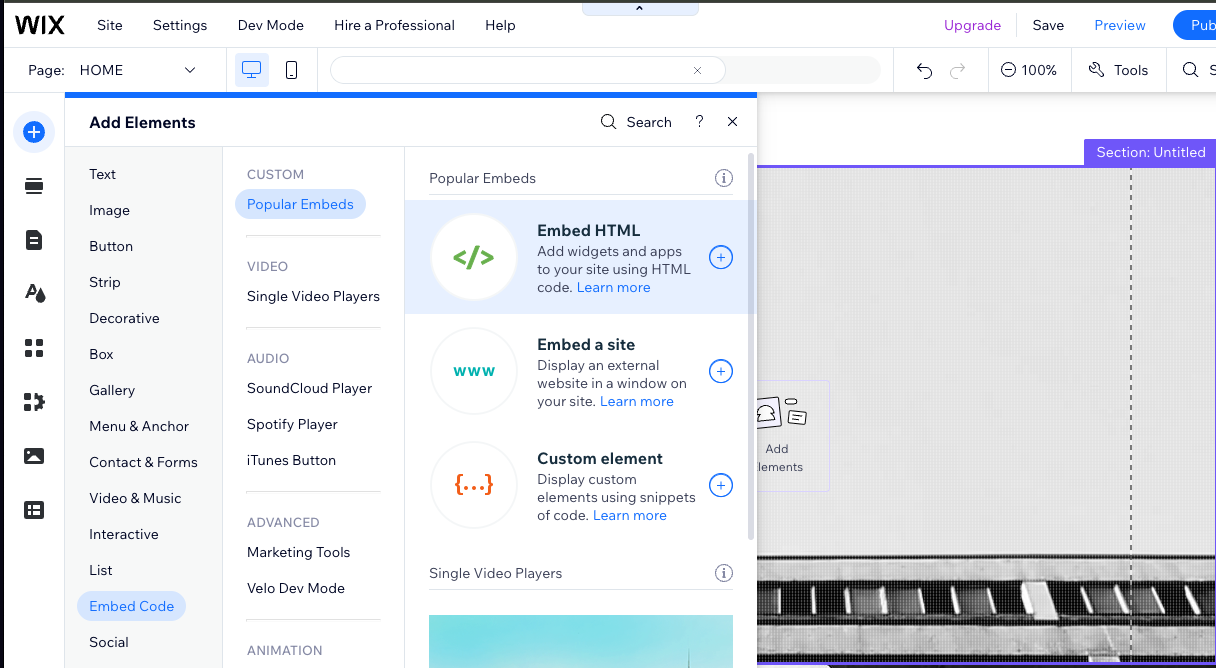
4. Add an “Embed HTML” Element
Add a new “Embed HTML” element (sometimes called “Custom Embed” or “HTML iframe”) to your page.
5. Paste the Dashery Store Widget Code
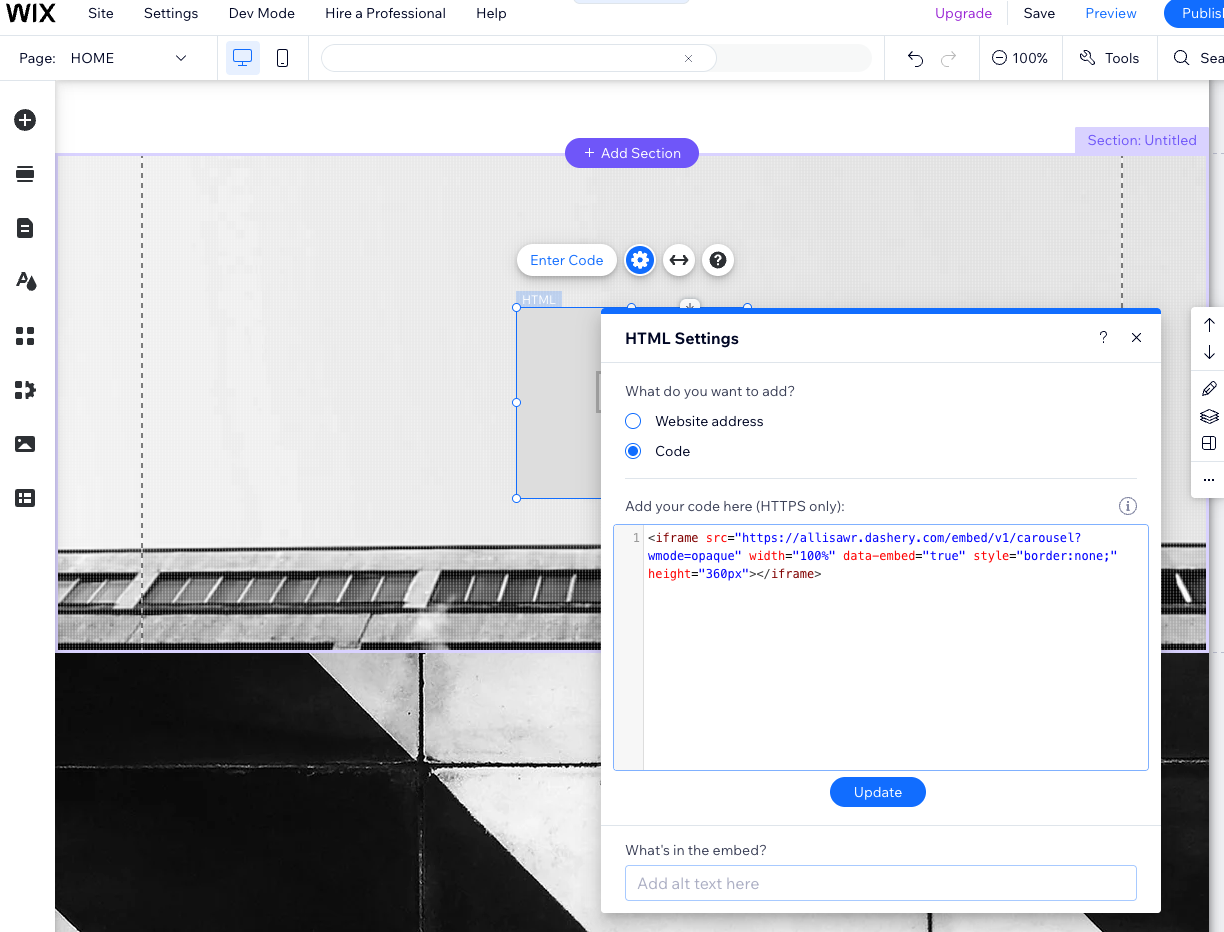
In the configuration panel of the Embed element, paste the Dashery Store Widget embed code into the “Code” field.
🎉 You’re done!
Your Dashery Store Widget will now display your first 8 products on your Wix page and will automatically update as you add new merch or rearrange your listings.
Want to customize colors? Head back to the Store Widget settings on your Dashery admin page to adjust background, text, and accent colors.
